Key takeaways
- Collated output prints complete sets in order: 1-2-3, 1-2-3.
- Uncollated output prints stacks of each page: 1-1-1, 2-2-2.
- Leave collate on for anything read as a set; turn it off for piles of identical pieces.
- For packaging inserts, collated sets speed up packing and reduce missing pieces.
The short answer
Collate means "print in complete sets, in page order." When collate is on and you print three copies of a three-page document, the printer outputs page 1, 2, 3, then 1, 2, 3, then 1, 2, 3. Each copy comes out finished and ready to staple.
When collate is off (uncollated), the printer outputs all the copies of page 1 first, then all the copies of page 2, then all the copies of page 3: 1, 1, 1, 2, 2, 2, 3, 3, 3. You end up with neat piles of identical pages that someone has to sort into sets by hand.
Quick answer: Leave collate on for anything people read as a set: reports, handouts, booklets, contracts, menus with several pages. Turn it off only when you want stacks of identical pages, such as flyers, insert cards or forms you will hand out one page at a time.
The word comes from the Latin collatus, "brought together". In printing and binding, collating has always meant gathering separate sheets into the right order. Your printer's checkbox does the same job automatically.
Collated vs uncollated, side by side
| Collated | Uncollated | |
|---|---|---|
| Output order (3 copies, 3 pages) | 1-2-3, 1-2-3, 1-2-3 | 1-1-1, 2-2-2, 3-3-3 |
| What you get | Complete, ordered copies | Stacks of each page |
| Ready to staple or bind? | Yes | No, you sort first |
| Typical use | Reports, handouts, booklets, contracts | Flyers, single-page forms, cards, signs |
| Speed on older or basic printers | Sometimes slower | Sometimes faster |
| Speed on modern office printers | Usually the same | Usually the same |
| Risk | Very low | Pages mixed up while sorting |
Why uncollated was ever the default
Older printers had little memory. To print collated copies, the computer had to send the whole document again for each copy. Printing uncollated only needed each page sent once and repeated, so it was faster. Modern printers store the whole job in memory (often called "mopy" printing, for multiple original prints), so collating costs almost no time. That is why most software now ticks collate by default.
When uncollated is still the better choice
- Single-page jobs. If your document has one page, collate does nothing. A hundred copies of a one-page flyer are the same either way.
- Jobs you will split by page. Printing an insert card, a sticker sheet and a return label as pages 1, 2 and 3? Uncollated gives you three tidy piles, one per item.
- Hand assembly with other pieces. If page 2 goes into a different envelope from page 1, separate stacks are easier.
- Commercial print where a finisher collates. Print shops often print each sheet as a separate run and collate on a gathering machine afterwards.
How to collate (or not) in common software
The setting always lives in the print dialog, near the number of copies. Names vary slightly.
Microsoft Word (Windows)
- Press Ctrl + P.
- Under Settings, find the menu that says Collated 1,2,3 1,2,3 1,2,3.
- Switch it to Uncollated 1,1,1 2,2,2 3,3,3 if you need stacks.
- Set copies and print.
Microsoft Word and most apps (Mac)
- Press Cmd + P.
- Next to Copies, tick or untick Collated. If you don't see it, click Show Details.
Google Chrome and Google Docs
- Press Ctrl + P (or Cmd + P).
- Click More settings.
- When copies is above 1, a Collate checkbox appears. Tick it for sets.
Adobe Acrobat and Reader
In the print dialog, set Copies, then tick Collate. The small page icons beside it show the output order.
Excel
Excel shows the same Collated / Uncollated menu as Word. Remember that each worksheet may print as several pages, so check the preview before printing many copies.
Office printers and copiers
On a copier, collate is usually called Sort, Collate or shown as a stack icon with page numbers. The opposite option may be called Group or Stack. Many copiers also offer offset output, which shifts each set slightly sideways in the tray so the sets are easy to pick up separately.
Collating in professional printing and binding
In commercial printing, collating is a production step, not a checkbox.
Gathering and collating machines
Large jobs are printed as separate sheets or as signatures (big sheets printed with several pages on each side, then folded). A gathering machine picks one of each signature or sheet in order and stacks them into complete sets. For a saddle-stitched booklet, the folded signatures are nested inside each other instead; for a perfect-bound book, they are stacked in order and glued at the spine.
Collation marks
Printers sometimes print small black marks on the spine fold of each signature, positioned in a stepped line. When the signatures are gathered in the right order, the marks form a neat diagonal. A missing, duplicated or swapped signature breaks the line and is spotted at a glance.
Collating sets with different paper
Commercial collating also handles sets mixed from different stocks: a heavy cover, coated text pages, a tabbed divider, a carbonless form. Each component is printed on its own stock, then the machine gathers one of each into the set.
A short history of collating
For most of printing history, collating was done by hand. In book binderies, workers called gatherers walked along a table of stacked signatures, picking one from each pile in order to build a book block. Large printers employed rows of gatherers, and accuracy depended on concentration and the collation marks printed on each spine.
Mechanical gathering machines arrived in the late nineteenth and early twentieth centuries, using grippers or suction to pull one signature at a time from each pocket of a feeder and drop it onto a moving chain. Modern versions add sensors that detect a missing or doubled signature and stop the line or reject the set.
Office photocopiers brought collating to every workplace. Early copiers had sorters: towers of bins that received one copy of each page per bin. Later machines replaced the bins with memory, scanning each page once and printing complete sets in sequence. That is the same idea your laser printer uses today when it prints a collated job straight from memory.
Printing sets while saving paper and toner
Collated jobs often mean many copies, so small settings add up:
- Print double-sided where readers don't need single-sided pages. A 10-page handout for 30 people drops from 300 to 150 sheets.
- Use draft or toner-save mode for internal copies that don't need perfect blacks.
- Remove blank pages created by section breaks before printing many sets.
- Print one proof set and check it before sending the full run.
- Share digitally where a printed set isn't needed, and print only for those who want paper.
Collating for packaging and inserts
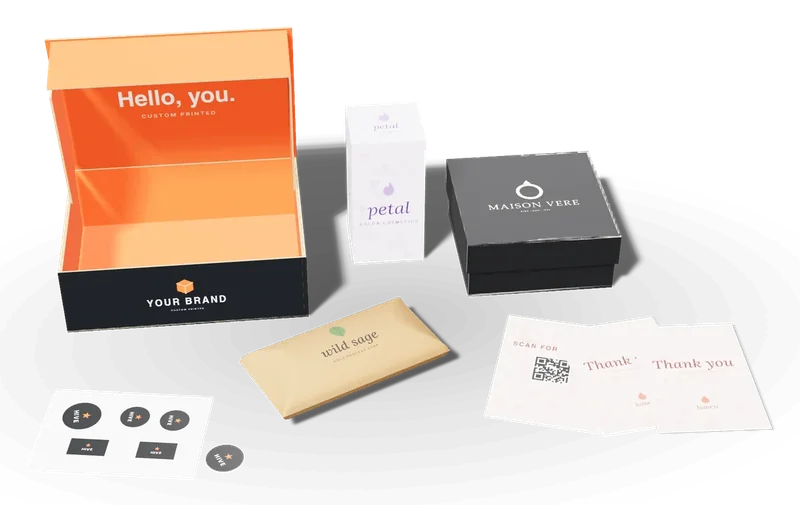
Collating matters in packaging more than most people expect, because many boxes ship with a printed set inside: a welcome card, instructions, a care guide, a discount code, a sticker sheet.
Insert sets
If every order gets the same three printed pieces, you have two choices:
- Print collated sets on a digital press and slip each set in as one bundle. Packers grab one set per box, which is faster and reduces missed pieces.
- Print uncollated stacks and assemble sets on the packing line. This suits pieces that are different sizes, such as a thank-you card plus a folded instruction sheet.
 AccessoriesThank You Cards & InsertsPrinted thank-you cards, care cards and discount inserts that drive repeat orders.
 AccessoriesCustom Stickers & LabelsSeal stickers, product labels and roll labels in paper, vinyl, kraft and foil.
GuidePackaging ideas for small businessesBudget-aware packaging ideas for small businesses, Etsy and Shopify sellers: low-cost branding, custom boxes, inserts, unboxing touches and money-saving tips.
AccessoriesCustom Stickers & LabelsSeal stickers, product labels and roll labels in paper, vinyl, kraft and foil.
GuidePackaging ideas for small businessesBudget-aware packaging ideas for small businesses, Etsy and Shopify sellers: low-cost branding, custom boxes, inserts, unboxing touches and money-saving tips.
 GuideUnboxing & brand designHow to design packaging that sells and gets shared: brand hierarchy, color, typography, the unboxing sequence, inserts and low-cost upgrades that matter.
Versioned and personalized inserts
Digital printing can print a different version of each set: a card with the customer's name, a booklet in the right language, an insert for each subscription month. Here, collated output in a known sequence is essential, because the sets must match the orders they go into. Number the sets, print in order, and pack in order.
Booklets that go inside a box
A user manual or brand book that ships inside a carton is a collated, bound piece. Ask your printer whether the booklet will be saddle-stitched (stapled through the fold, best under about 64 pages), perfect-bound (glued spine) or wire-bound. The binding method decides whether the page count must be a multiple of 4 (saddle stitch requires it) and how thick the finished booklet will be, which then decides the inside height of the box.
Collate vs other print settings people confuse it with
Collate vs duplex (double-sided)
Duplex prints on both sides of each sheet. Collate decides the order of copies. They work together: a 6-page document printed duplex becomes 3 sheets, and collate decides whether the 3 sheets come out as sets.
Collate vs reverse order
Some printers output face-up, so the last page ends on top. Reverse order fixes that. It has nothing to do with sets. You can print reverse order with or without collate.
Collate vs booklet printing
Booklet mode rearranges pages (imposition) so that when the sheets are folded in half, they read in the right order: for an 8-page booklet printed on two sheets, one sheet carries pages 8 and 1 on one side and 2 and 7 on the other. Collate then decides whether you get complete booklet sets.
Collate vs staple and finishing
Stapling, hole punching and folding are finishing options on office copiers. They require collated output, which is why some copiers lock collate on when you choose staple.
Collate vs "copies" and "pages per sheet"
Copies is how many sets you want. Pages per sheet (also called N-up) places several pages on one side of paper to save paper. Neither changes the set order.
Collate vs collation in databases and languages
If you searched for "collation" and landed here, the word is also used in databases and software to mean the rules for sorting and comparing text, such as whether "a" and "A" count as equal. Same root, completely different meaning.
Common collating problems and how to fix them
"I ticked collate but got stacks"
- The application and the printer driver both have a collate setting. If one says collate and the other doesn't, the driver usually wins. Check both, or open Printer Properties from the print dialog.
- Some printers need a hard drive or enough memory to collate large jobs. If the job is too big, the printer may silently switch to uncollated. Print in smaller batches, or reduce image resolution.
- On a network copier, the device may have its own default. Change the setting on the copier's panel.
"Collate option is greyed out"
The option only becomes active when copies is greater than 1. Set copies first.
"Pages are in the wrong order inside each set"
That is usually a reverse order problem, not a collate problem. Turn reverse order on or off. If you are printing duplex and only some pages are wrong, check whether a section break or odd page count is adding blank pages.
"Sets are hard to separate in the tray"
Turn on offset or job separator output if your printer has it, or print a colored separator sheet between sets.
Collated or uncollated? Twelve everyday examples
| Job | Pages | Copies | Choose | Why |
|---|---|---|---|---|
| Meeting handout | 6 | 20 | Collated | Each person needs a full, ordered set |
| Contract for signature | 12 | 3 | Collated, stapled | Missing pages cause real problems |
| Restaurant menu (folded) | 4 | 50 | Booklet + collated | Pages must nest in reading order |
| Event flyer | 1 | 200 | Either | One page, so both settings match |
| Flyer + map + ticket | 3 | 100 | Uncollated | Each piece is handed out separately |
| Product insert set (card, guide, sticker sheet) | 3 | 500 | Collated | Packers add one set per order |
| Certificates, each with a different name | 25 | 1 | Either | Only one copy, so collate has no effect |
| Training manual for binding | 48 | 15 | Collated | Goes straight to the binder |
| Exam papers with answer sheet | 5 | 30 | Collated, offset | Sets must be complete and easy to pull apart |
| Forms filled out one page at a time | 2 | 100 | Uncollated | Staff file each form type separately |
| Proof copies for review | 20 | 2 | Collated | Reviewers read in order |
| Recipe cards in a gift box | 8 | 250 | Collated | Each box gets a full deck of recipes |
Collating on home and small-office printers
Brand drivers label the option slightly differently, but it is always next to the copies count:
- HP: the print dialog shows Collate under copies. HP Smart app jobs on phones usually collate automatically.
- Canon: look for Collate on the Page Setup or Main tab of the driver.
- Epson: the Collate checkbox sits beside Copies on the Main tab; on some models it is under More Options.
- Brother: the driver uses Collate under Basic; copiers show Sort on the copy menu.
On phones and tablets, the share-to-print sheet often hides collate entirely and prints sets by default. If you need stacks, print one page at a time with the copies number you want.
How to collate by hand (when you have to)
Sometimes you only have uncollated stacks, for example from a fast copier or a print shop that delivered page piles. A tidy method:
- Lay the stacks in a row in page order, left to right, face up.
- Pick from the last page backward if you want the finished set face up with page 1 on top: take page 3, place page 2 on it, then page 1.
- Alternate direction each set: place one finished set portrait, the next landscape, crossing them on a pile. This "criss-cross" stacking keeps sets separate without clips.
- Count a few sets at random to check nothing was skipped.
- Use a rubber fingertip (a finger cot) so single sheets lift cleanly and quickly.
For more than a few hundred sets, ask a print shop for machine collating. It is faster, more accurate and usually cheaper than paying for the hours.
A checklist before you print a big collated job
- Check the page count in print preview. Blank pages from section breaks multiply quickly across hundreds of copies.
- Confirm duplex pairs: does every set start on a right-hand page?
- Print one set first and read it from front to back.
- Turn on offset output or plan separator sheets.
- Make sure the printer has enough paper and toner for the whole run, so sets are not split across a jam.
- If the sets will be stapled or bound, check that the margins leave room for the staple or binding edge.
How collating affects print cost and time
For office printing, collate has almost no effect on cost. The same number of sheets prints either way.
For commercial printing, collating is labor or machine time, so it can appear as a separate line on a quote:
- Digital presses can print collated sets directly at no or small extra cost, because each sheet can be different.
- Offset presses print one sheet design many times. Sets are made afterwards on a collator, which adds a make-ready and per-set charge.
- Hand collating (gathering by hand) is the most expensive option and is used for odd sizes or tiny runs.
If you are ordering printed inserts with packaging, ask whether the quote includes collating, whether sets will be banded, shrink-wrapped or boxed, and how many sets go in each carton. Those details save time on your packing line.
A plain-English glossary
- Collate: put pages or pieces into complete, ordered sets.
- Uncollated: output grouped by page instead of by set.
- Set: one complete copy of a multi-page document.
- Signature: a large printed sheet that is folded into a group of pages, usually 4, 8, 16 or 32.
- Gathering: assembling signatures in order on a collating machine.
- Collation marks: stepped marks printed on signature spines to check order.
- Offset output (job offset): shifting each set slightly in the tray to separate them. Not the same as offset printing.
- Imposition: arranging pages on a press sheet so they read correctly after folding and cutting.
- Duplex: printing on both sides.
Key terms on this page
- Insert
- A component inside a box that holds products in place, such as die-cut paperboard, corrugated, foam or molded pulp.
- Tray
- An open-topped box base, often used with a sleeve or lid.
- Proof
- A preview of the final package (digital PDF, 3D render or physical sample) that the customer approves before production.
- Bundle
- A group of flat boxes tied or banded together for shipping and storage.
- Kraft
- Paper or board made from unbleached wood pulp, naturally brown and strong.
- Digital printing
- Printing directly from a digital file without plates. Ideal for short runs, multiple designs and fast changes.
- Carton
- A box made from paperboard, usually a folding carton. In shipping, "carton" can also mean a corrugated case.
- Resolution
- The detail in a raster image, measured in pixels per inch (ppi). Print usually needs 300 ppi at final size.
- Panel
- A face of a box, such as the front, back, side, top or bottom panel.
- Make-ready
- Setting up a press or machine before a run, including mounting plates and adjusting color. A major part of setup cost.
- Offset printing
- Lithographic printing that transfers ink from metal plates to a rubber blanket and then to the sheet. Sharp detail and consistent color for larger runs.
More definitions in our packaging glossary.
Discussed on Quora & X
Frequently asked questions
What does collate mean when printing?
Collate means the printer outputs complete copies in page order: 1, 2, 3, then 1, 2, 3 again. Each copy comes out as a finished set.
Should I print collated or uncollated?
Print collated for anything read as a set, like reports, handouts and booklets. Print uncollated when you want stacks of identical pages, such as flyers or single-page forms.
What does uncollated mean?
Uncollated means all copies of page 1 print first, then all copies of page 2 and so on: 1, 1, 1, 2, 2, 2, 3, 3, 3.
Does collating make printing slower?
On modern printers, usually not, because the printer stores the job in memory. On older printers with little memory, collated jobs could be slower because each set was sent again.
Does collate matter for a one-page document?
No. With a single page every copy is identical, so collated and uncollated output are the same.
Is collating the same as double-sided printing?
No. Double-sided (duplex) printing puts content on both sides of each sheet. Collating decides whether copies come out as complete sets.
Why is the collate box greyed out?
Collate only becomes available when you print more than one copy. Increase the number of copies and the option appears.
What is collating in commercial printing?
It is the step that gathers separately printed sheets or folded signatures into complete sets in the right order, usually on a gathering machine, before binding or packing.
Can a print shop collate packaging inserts for me?
Yes. Ask for printed insert cards to be collated into sets and banded or bagged, so your packers can add one bundle per order. Confirm the set contents and quantity per carton on the quote.
Related products & pages
 PrintingDigital PrintingPlate-free full-color printing for short runs, variations and fast reorders.
AccessoriesThank You Cards & InsertsPrinted thank-you cards, care cards and discount inserts that drive repeat orders.
AccessoriesCustom Stickers & LabelsSeal stickers, product labels and roll labels in paper, vinyl, kraft and foil.
PrintingDigital PrintingPlate-free full-color printing for short runs, variations and fast reorders.
AccessoriesThank You Cards & InsertsPrinted thank-you cards, care cards and discount inserts that drive repeat orders.
AccessoriesCustom Stickers & LabelsSeal stickers, product labels and roll labels in paper, vinyl, kraft and foil.
 PrintingOffset PrintingPlate-based CMYK and Pantone printing with the sharpest detail and the most accurate color.