Key takeaways
- Always design on the dieline for your exact size and style.
- Extend background art 0.125 in past cut lines; keep text 0.125 in inside.
- Convert to CMYK (or specify Pantone), keep images at 300 ppi at final size.
- Put foil, spot UV and emboss on separate 100% spot-color layers.
Why artwork is the most common cause of delays
Most packaging delays have nothing to do with printing presses. They come from artwork that is not quite print-ready: the wrong dieline, missing bleed, low-resolution images, RGB colors, fonts that are not embedded, finishes on the wrong layer, barcodes that do not scan. Each problem means another round of emails and another proof. This guide shows how to prepare packaging files correctly the first time.
You do not need to be a professional designer to follow it, but if you work with one, share this guide with them along with your dieline.
Step 1: Get the dieline first
A dieline is the flat template of your box: the exact shape of the board before it is folded, with every cut and fold marked. It is specific to:
- The box style (mailer, tuck end, auto-lock, rigid wrap)
- Your inside dimensions
- The material thickness (thicker board needs larger panels)
Never design on a generic template downloaded from the internet or a dieline for a different size. A dieline that is off by even 1/16 inch can put text across a fold or leave a white edge.
You can get a dieline:
- From us, free with every quote, for your exact size and material
- From our Dieline Generator instantly, for eight common styles (download SVG or PDF)
- From your supplier, whoever prints your boxes
Reading a dieline
| Line | Usual style | Meaning |
|---|---|---|
| Cut line | Solid (often black or red) | Where the board is cut through |
| Crease / fold line | Dashed (often magenta or green) | Where the board folds |
| Bleed line | Outside the cut line, 1/8 in | How far background art should extend |
| Safe zone | Inside the cut and fold lines, 1/8 in | Where important content must stay |
| Glue area | Hatched or labeled | Must stay free of ink and coating |
| Perforation | Dotted | Tear lines |
Dielines usually label panels (front, back, top, side) so you know which way each panel faces when folded.
Step 2: Set up the document
- Use vector software: Adobe Illustrator, Affinity Designer, CorelDRAW or Inkscape. Photoshop is fine for images, not for final packaging layouts.
- Place the dieline on its own locked layer, named "DIELINE", set to overprint, and keep it in the final file (we remove it from print plates).
- Set the artboard to the dieline size plus a margin.
- Work at 1:1 scale.
Step 3: Bleed and safe zones
- Bleed: extend any color or image that touches a cut edge 1/8 in (3 mm) past the cut line. Cutting can shift slightly; bleed prevents white edges.
- Safe zone: keep text, logos and critical details at least 1/8 in inside cut and fold lines. On corrugated board, use 3/16 in.
- Folds: do not place small text across folds; the fold can crack ink and distort letters.
Step 4: Color setup
- Document color mode: CMYK. RGB colors shift when converted, especially bright greens, blues and oranges. See CMYK vs RGB vs Pantone for how to convert.
- Spot colors: name them exactly as Pantone references (for example "PANTONE 1655 C") if you want a spot ink or close match.
- Rich black for large black areas (for example C40 M30 Y30 K100); 100% K for small text and fine lines.
- Total ink coverage: keep below about 300% to avoid drying problems.
- White ink (on kraft or clear materials) must be a separate spot layer named "WHITE".
Step 5: Images and resolution
- 300 ppi at final size for photos and raster images
- Vector logos (AI, EPS, SVG, PDF) wherever possible
- No screenshots or web images (usually 72 ppi)
- Linked or embedded images packaged with the file
Check a logo or image quickly with the Artwork Checker.
Tip: If you only have a low-resolution logo, ask your designer for the original vector file or have it redrawn. A blurry logo is the single most visible quality problem on packaging.
Step 6: Typography
- Minimum size: 6 pt on paperboard for body copy (larger is better); 8 pt on corrugated
- Reverse type (light on dark) should be bold and slightly larger
- Fonts: convert to outlines or embed them in the PDF
- Legal and regulatory text: check required sizes for your category (for example, net quantity rules)
Step 7: Finishes on separate layers
Each finish needs its own layer and spot color at 100%:
| Finish | Layer / spot name | Notes |
|---|---|---|
| Foil | FOIL (plus color, for example FOIL GOLD) | Vector only |
| Spot UV | SPOT UV | Vector only |
| Embossing | EMBOSS | Vector only; bold shapes |
| Debossing | DEBOSS | Vector only |
| White ink | WHITE | For kraft or film |
| Window | WINDOW | Cut path on the dieline layer |
| Varnish-free area | NO COATING | For glue areas or labels |
Set finish layers to overprint so they do not knock out the artwork underneath.
Step 8: Barcodes and QR codes
- UPC barcodes: obtain GS1-registered numbers; print at 100% nominal size where possible (minimum magnification per GS1 guidance); black bars on white or a light background; keep quiet zones clear; avoid curves and folds.
- QR codes: at least about 0.8 in (2 cm) square for reliable scanning; high contrast; test with several phones.
- Never place barcodes across folds or on glue areas.
Step 9: Check panel orientation
Text on flaps and lids must read correctly when the box is closed. On tuck end boxes, the top tuck flap folds over and its text should read upright when viewed from the front. On mailers, the lid's outside and the inside lid face are on opposite sides of the sheet. Print the dieline, cut it out and fold it if you are unsure.
Step 10: Export the print-ready PDF
- PDF/X-1a or PDF/X-4 standard
- Include bleed in the export
- Keep the dieline as a separate named spot color set to overprint
- Embed fonts
- Name the file clearly (Brand_Product_Size_Version_Date.pdf)
Pre-flight checklist
- [ ] Correct dieline for size, style and material
- [ ] Bleed 1/8 in on all cut edges
- [ ] Content within safe zones
- [ ] CMYK mode; spot colors named correctly
- [ ] Images 300 ppi at size
- [ ] Fonts outlined or embedded
- [ ] Finishes on separate layers
- [ ] Barcodes tested
- [ ] Spelling and regulatory text checked
- [ ] Panel orientation verified
Setting up files in popular design apps
Adobe Illustrator
- Open the dieline file (PDF or AI) we provide; keep it on its own locked layer named "Dieline".
- Set the document color mode to CMYK (File > Document Color Mode).
- Create layers in this order from top: Dieline, Finishes (Foil, Spot UV, Emboss as separate layers), Artwork.
- Extend backgrounds to the bleed line.
- Create spot swatches for each finish and set them to 100%.
- Outline fonts (Type > Create Outlines) on a copy of the file, or embed them in the PDF.
- Export as PDF/X-4 or high-quality print PDF with bleed, keeping layers.
Affinity Designer and Inkscape
Both can open SVG and PDF dielines. Keep the dieline on its own layer, work in CMYK where possible (Affinity supports CMYK documents; Inkscape works in RGB, so let our prepress team convert and check colors), and export a PDF with bleed. Name spot colors for finishes clearly.
Canva
Upload the dieline as an image or PDF background, set the design size to the full flat size including bleed, place artwork, then remove or hide the dieline before exporting as PDF Print with crop marks and bleed. Use high-resolution images. Our team checks Canva files for free and can convert colors.
Figma
Figma is excellent for layouts but exports RGB. Use it for concepts and mockups, then send exports at high resolution (or SVG for vectors) and we will prepare print-ready CMYK files, or ask your designer to finish in a print-focused app.
Panel by panel: what goes where
| Panel | Typical content |
|---|---|
| Front (principal display panel) | Logo, product name, key benefit, net quantity (if required) |
| Back | Story, directions, ingredients or specifications, company details, barcode |
| Sides | Variant name (visible on shelf from the side), icons, secondary claims |
| Top | Logo or product name (seen from above on low shelves and in photos) |
| Bottom | Barcode on some boxes, batch area, recycling instructions |
| Inside lid (mailers, rigid boxes) | Message, pattern, QR code |
| Glue flap | Nothing (keep clear) |
Common artwork problems and how we fix them
| Problem | Why it matters | Fix |
|---|---|---|
| No bleed | Thin white edges after cutting | Extend backgrounds 1/8 in past cut lines |
| Text too close to folds | Text wraps around edges or gets cut | Move inside the safe zone |
| RGB images | Colors shift when converted | Convert to CMYK and review |
| Low-resolution logo | Blurry print | Use vector logo |
| Fonts not outlined or embedded | Font substitution | Outline or embed |
| Finish on the wrong layer | Foil or spot UV in the wrong place | Separate finish layers |
| Dieline printed | Lines appear on boxes | Set dieline to non-printing layer |
| Wrong orientation | Upside-down text when folded | Check panel orientation on a paper mockup |
Proofing checklist
Before you approve a proof, check:
- [ ] Every word, especially product names, claims and ingredients
- [ ] Barcodes scan and match your GS1 records
- [ ] Colors and finishes are on the intended areas
- [ ] Panel orientation is correct (print and fold a paper mockup)
- [ ] Dimensions, style, board and quantity on the proof match your order
- [ ] Required regulatory information is complete
Understanding dieline anatomy in depth
A production dieline carries more information than it first appears:
- Cut lines (solid): where the steel rule cuts through the board.
- Crease or score lines (dashed): where the board is pressed so it folds cleanly.
- Perforations (dotted or dash-dot): partial cuts for tear strips and tear-away panels.
- Half-cuts (kiss cuts): cuts through only part of the board, used on labels and some cartons.
- Glue areas: marked zones where adhesive is applied; keep them free of ink and coatings.
- Bleed line: usually 1/8 in outside the cut line; extend artwork to it.
- Safe line: usually 1/8 in inside cut and fold lines; keep text and logos inside it.
- Panel labels and dimensions: for orientation; not printed.
- Grain direction arrow: shows how the board grain runs.
Dielines use spot colors for each line type so they can be switched off for printing. Never merge them into your artwork.
How board thickness affects artwork
Board thickness changes where folds fall. On thin paperboard, the difference between inside and outside dimensions is small, but on corrugated or rigid board it can be several millimeters. That is why a dieline made for 18pt SBS will not fit E-flute corrugated, and why you should always design on the production dieline for your exact board. If you change board after designing, ask for a new dieline and adjust artwork.
Variable data and versions
If you sell several variants (flavors, scents, sizes), set up artwork so one master file controls shared elements, and each variant changes only specific layers: color, product name, ingredients, barcode. This makes updates faster and reduces errors. With digital printing, variants can be printed in one run.
Artwork for accessories
- Tissue paper: a seamless repeat pattern in one or two spot colors.
- Stickers: vector shapes with a separate cut line; 1/16 in bleed.
- Tape: a repeating design that reads in short segments.
- Cards: standard print sizes with bleed; check fold lines on folded cards.
- Hang tags: front and back artwork with hole position marked.
Handing off files
When you send artwork:
- Name files clearly, for example "BrandName_Mailer_9x6x3_v3.pdf".
- Include a flattened preview (JPG or PNG) so everyone can see the intended look.
- Note special instructions (spot colors, finishes, color-critical areas).
- Send fonts and linked images if you are sending editable files.
- Keep a version log so you know which file was approved.
Barcodes on packaging: a closer look
Retail products usually carry a UPC-A barcode (GTIN-12) licensed through GS1 US. Key practices:
- Get legitimate numbers from GS1 US; retailers check that the company prefix matches your brand.
- Print at 80–200% of nominal size; nominal UPC-A is about 1.469 × 1.02 in including numbers.
- Do not truncate (shorten) the bars more than necessary.
- Use dark bars on a light background; black on white is best. Avoid red bars, which scanners cannot read.
- Keep quiet zones clear on both sides.
- Avoid curves, folds and seams.
- Verify printed barcodes with a barcode verifier for retail launches.
Shipping cases often carry an ITF-14 barcode (GTIN-14) for case-level scanning.
QR codes on packaging
- Size: at least about 0.8 in square for close scanning; larger for distance.
- Contrast: dark code on a light background.
- Quiet zone: a clear margin around the code.
- Destination: a URL you control so you can change where it points.
- Call to action: tell people what they get by scanning.
- Testing: scan printed proofs with several phones.
Designing for legibility on packaging
Packaging text is read at arm's length, at a glance, under store lights, often on curved or folded surfaces. To keep it legible:
- Use sufficient size: primary names large; body copy at least 6–7 pt on paperboard, larger on corrugated or kraft.
- Choose high contrast: dark text on light backgrounds for information.
- Avoid thin fonts in reverse (white on dark).
- Limit line length on small panels so lines do not wrap awkwardly.
- Keep text off textures and photos where possible.
- Test print a page of your smallest type on the actual board.
Artwork for multiple sizes
If the same design appears on several box sizes, build a master layout that scales logically: logo and product name sized relative to the panel, consistent margins, and modules for information that can stretch or compress. Design each size on its own dieline rather than scaling a single file, which can distort type and misplace elements on folds.
Working with a freelance designer
Many brands hire a freelance designer for packaging. A smooth collaboration usually follows these steps:
- Share the brief (product, audience, brand assets, references, budget, deadline).
- Provide the production dieline for your exact style, size and board before design starts.
- Agree on deliverables: print-ready PDF with layers, editable source files, mockups, and a preview image.
- Review concepts on mockups, not just flat files, to judge how the design wraps around the box.
- Run our free artwork check before final approval so issues are fixed in the designer's file.
- Approve the production proof yourself, reading every word.
Ask your designer to keep finishes on separate layers, text editable in the source file, and images linked at full resolution.
Packaging artwork file naming and version control
Packaging projects generate many file versions. A simple naming system prevents printing the wrong one:
Brand_Product_Style_Size_vNumber_Date.pdf
For example, Northwind_Serum_TuckEnd_2x2x5_v4_2026-10-21.pdf. Keep a short change log, and mark the file you approve as "APPROVED" in the name. When reordering, use the approved file unless you intend to change it.
Converting artwork between styles
When moving a design from one style to another (for example, from a tuck end carton to a sleeve box), do not simply resize the old artwork. Each style has different panels, folds and visible faces. Start from the new dieline, place the main elements on the panels customers will see first, and re-flow information panels. This is a good moment to simplify and update the design.
Artwork for retail and e-commerce versions
Some brands need slightly different packaging for retail and online sales: a barcode and retail claims on one, a thank-you message and returns information on the other. Keep a shared master design and use separate variant layers, or use a sleeve or sticker to switch between versions without reprinting the whole box.
Artwork FAQ, extended
Can I send artwork without a dieline? Yes. Send your logo and ideas; we provide the dieline and can lay out the design.
What resolution do photos need? 300 ppi at final printed size for paperboard and E-flute; 150–200 ppi can be acceptable for flexo on corrugated.
Do I need to convert to CMYK myself? It helps you see color shifts early, but our prepress team can convert and will flag significant changes.
Can I print white ink? On kraft, clear and metallized materials, white ink is available on many processes; specify it as a spot layer.
Color modes and profiles, simply explained
RGB is the color model of screens: red, green and blue light combine to make colors. CMYK is the model of printing: cyan, magenta, yellow and black inks absorb light. RGB can show brighter colors than CMYK can print, especially vivid greens, blues and oranges, which is why colors can look duller in print than on screen.
Color profiles describe how a device or press reproduces color. Prepress teams convert your artwork using profiles matched to the press and board, so colors are as close as possible to your intent. You do not need to manage profiles yourself, but designing in CMYK (or reviewing a CMYK preview) helps you see likely shifts early.
Spot colors (Pantone) are premixed inks used for exact brand colors. In digital printing they are simulated with process inks; in offset and flexo they can be printed as true spot inks.
Common artwork file sizes
Packaging files can be large. Keep them manageable by linking images at the right resolution (not far higher than needed), flattening complex effects only when necessary, and using PDF compression settings designed for print. If a file exceeds upload limits, share it through a cloud link.
Artwork checklist for reorders
When reordering packaging:
- [ ] Confirm you are using the last approved file
- [ ] Update any changed information (ingredients, claims, addresses, barcodes)
- [ ] Check that regulations have not changed
- [ ] Keep size and board the same unless you intend to change them
- [ ] Request a new proof if anything changed
- [ ] Compare the delivered boxes with the previous approved sample
Tactile and accessible design elements
Packaging can include tactile features that help all customers, including people with visual impairments: raised dots or textures to identify variants, embossed product names, distinct shapes or cut-outs, and high-contrast large type for key information. Braille on packaging is required for medicines in some regions outside the US and is used voluntarily by some brands; if you add it, follow the relevant Braille standards for dot height and spacing, and keep it away from folds.
Artwork for different printing processes
Digital printing: CMYK files with Pantone references; very fine detail possible on paperboard; variable data supported.
Offset printing: CMYK plus named spot colors; true Pantone inks; exceptional detail.
Flexographic printing: usually spot colors; heavier minimum line weights; avoid fine halftones on corrugated; allow registration tolerance between colors.
Rigid box wraps: artwork on a wrap dieline with large turn-in margins; keep text away from edges.
Pouches: reverse-printed films need white ink layers behind colors; keep text away from seals and zippers.
Tell us the process if you know it, or let us choose, and we will advise on file setup.
Dieline FAQ, extended
Can I change the size after starting artwork? Yes, but request a new dieline and adjust artwork; scaling old artwork can misplace elements on folds.
Why does my dieline look bigger than my box? Flat dielines include flaps, glue areas and bleed, so the flat sheet is much larger than the folded box.
Do you provide dielines for inserts? Yes, inserts have their own dielines.
Can I print a dieline to make a paper mockup? Yes. Print the PDF at 100% scale, cut, score and fold to check size and panel orientation.
Artwork approvals inside your team
Many artwork errors happen inside brands, not printers. Set up a simple approval chain: designer prepares the file; a second person checks text against the master copy; someone responsible for compliance reviews regulated content; one person gives final approval. Use a shared checklist so nothing is skipped when deadlines are tight.
Summary: what to remember
- Always design on the production dieline for your exact size and board.
- Add 1/8 in bleed and keep a 1/8 in safe zone.
- Use vector logos and 300 ppi images.
- Work in CMYK and provide Pantone references.
- Put finishes on separate spot-color layers.
- Check panel orientation with a paper mockup.
- Test barcodes and QR codes.
- Read every word on the proof before approving.
Common mistakes to avoid
Designing on a generic template. A template downloaded for a similar box may differ in board thickness, tuck length or glue flap. Always place artwork on the dieline issued for your exact size and material.
Running text to the edge. Cutting varies slightly from sheet to sheet. Text and logos placed in the bleed or right against a fold can be trimmed or cracked. Keep everything important inside the safe zone.
Sending RGB files. Bright on-screen colors, especially greens, blues and oranges, often cannot be reproduced in CMYK. Convert early, check the result, and give Pantone references for critical brand colors.
Low-resolution images. An image that looks sharp on a website may print blurry at box size. Check effective resolution at 100% scale: aim for 300 ppi and never rely on upscaling.
Merging finish layers into artwork. Foil, spot UV and embossing need their own clean vector layers named as spot colors. If they are flattened into the artwork, the printer cannot make the tools.
Approving without reading. Proofs are where typos, wrong barcodes and missing statements are caught. Read every word, scan every code and check every panel's orientation before signing off.
Working with our design team
Not a designer? Send us your logo (vector if possible), brand colors and any copy. We lay out your artwork on the dieline and send a proof. Free design help and artwork checks are included with every quote. See our artwork guidelines.
Key terms on this page
- Artwork
- The final graphic files (logos, images, text and colors) placed on a dieline and used to make printing plates or digital print files.
- Dieline
- A flat template showing the exact shape of a box before folding, with cut, crease, bleed and safe zones. Artwork is designed on top of it.
- Bleed
- Artwork that extends beyond the cut line, normally 1/8 inch (3 mm), so that no unprinted edge appears if cutting shifts slightly.
- Proof
- A preview of the final package (digital PDF, 3D render or physical sample) that the customer approves before production.
- Board
- A general term for thick paper materials used in packaging, including paperboard, corrugated board and greyboard.
- Wrap
- The printed or specialty paper glued around the board of a rigid box or tube.
- Inside dimensions
- The usable space inside a box, the standard way to specify custom box sizes (L × W × H).
- Cut line
- The line on a dieline where the board is cut through, usually shown as a solid line.
- Crease (score)
- A line pressed into board so it folds cleanly in the right place. Shown as dashed lines on dielines.
- Safe zone
- The area inside the cut and fold lines where important text and logos should stay, usually at least 1/8 inch from any edge.
- Perforation
- A line of small cuts that lets packaging tear easily, used for tear strips and PDQ tops.
- Panel
- A face of a box, such as the front, back, side, top or bottom panel.
- Overprint
- Printing one color on top of another without knocking out the color beneath.
- Corrugated board
- Board made of a fluted (wavy) paper medium glued between flat liners. It is strong, light and the main material for shipping boxes and mailers.
- CMYK
- The four process ink colors (cyan, magenta, yellow and key/black) combined in small dots to reproduce full-color images in print.
- Pantone (PMS)
- The Pantone Matching System, a standardized color reference used to specify exact spot colors.
- Rich black
- Black printed with CMYK plus black ink for a deeper tone in large areas. Small text should use 100% black only.
- Coverage
- The proportion of a surface covered by ink. Heavy coverage uses more ink and can affect drying and cracking.
- Kraft
- Paper or board made from unbleached wood pulp, naturally brown and strong.
- Resolution
- The detail in a raster image, measured in pixels per inch (ppi). Print usually needs 300 ppi at final size.
- Paperboard
- Thick paper (usually 0.010 inch or more) used for folding cartons, such as SBS, kraft and recycled board.
- Net quantity
- The amount of product in a package (weight, volume or count), which many US consumer products must state on the main display panel.
- Finish
- Any treatment applied after printing to change appearance or protect the surface, such as coatings, laminations, foil, embossing or spot UV.
- Spot color
- A pre-mixed ink printed as a solid color, often matched to a Pantone reference.
More definitions in our packaging glossary.
Discussed on Quora & X
Frequently asked questions
What file format should I send?
A print-ready PDF (PDF/X-1a or PDF/X-4) with bleed, or the native AI file with linked images and fonts.
What is bleed?
Extra artwork that extends beyond the cut line, usually 1/8 in, so there are no white edges after cutting.
Can I design packaging in Canva?
You can, if you use the correct dieline at 1:1 scale, add bleed and export a high-resolution PDF. Professional vector software makes finishes and spot colors easier.
Do you check my files?
Yes. Every file is checked before proofing, and we flag any problems.
What resolution should images be?
300 ppi at the final printed size.
Can I design my box in Canva?
Yes. Use the dieline as a guide, export as PDF Print with bleed, and our team will check the file.
What is PDF/X-4?
A print-oriented PDF standard that preserves color, transparency and layers reliably. It is a good choice for packaging files.
Who is responsible for spelling mistakes?
You are, once you approve the proof. That is why careful proof checking matters.
What file format do you prefer?
A print-ready PDF with bleed and layers, or editable AI or EPS files with fonts outlined and images linked.
Can I use Pantone colors in digital printing?
Yes. Digital presses simulate Pantone colors with process inks; most match closely.
What is a safe zone?
An area inside cut and fold lines (usually 1/8 in) where important text and logos should stay.
Do I need bleed on every side?
Yes, wherever artwork reaches a cut edge.
How do I indicate foil on my artwork?
Create a separate layer with the foil shapes as a 100% spot color named for the finish.
What if my artwork has errors?
We flag issues in our free artwork check and can fix simple problems; you approve the final proof.
Related products & pages
 Box StylesMailer BoxesSelf-locking corrugated mailers printed inside and out. The go-to box for DTC brands and subscriptions.
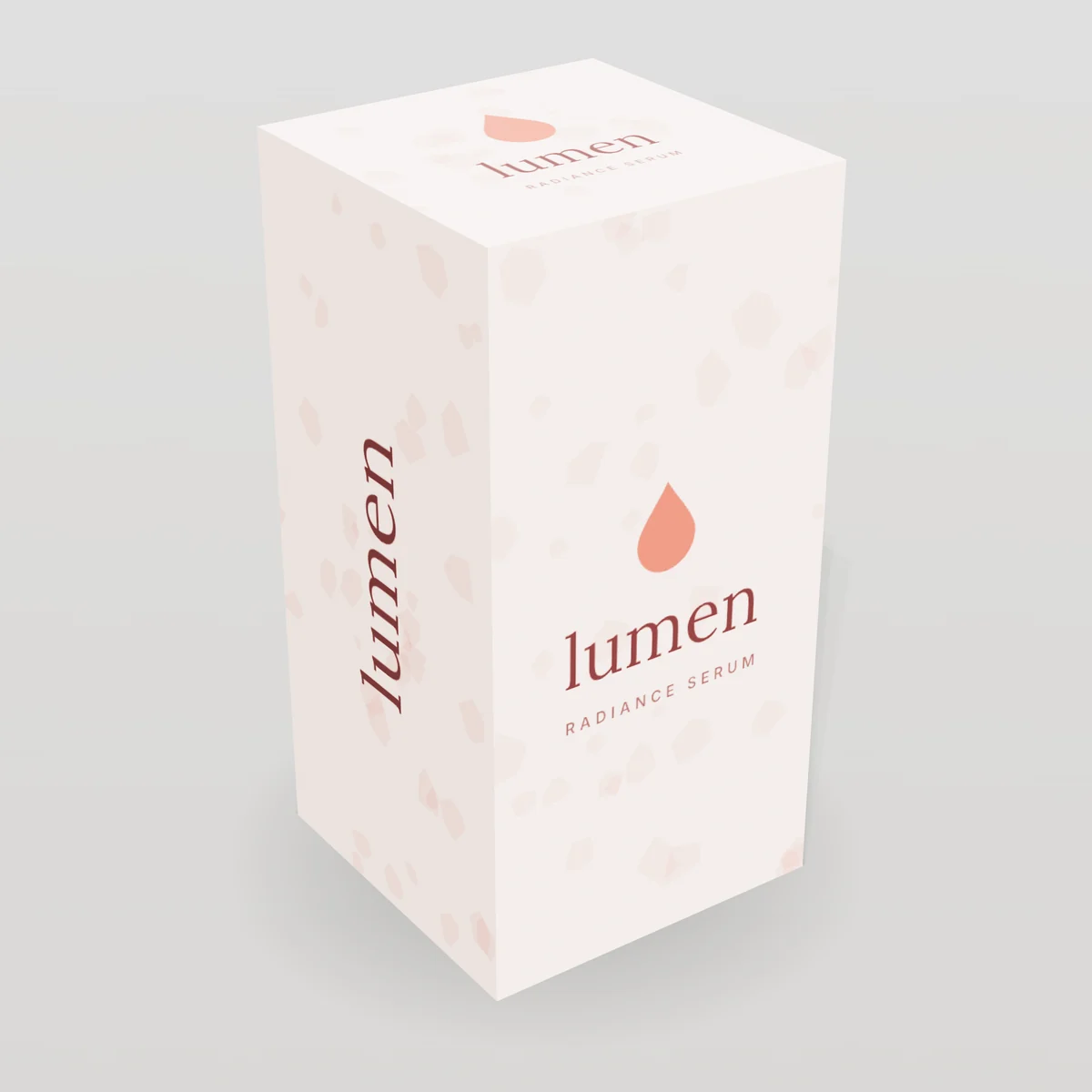 Box StylesTuck End BoxesStraight and reverse tuck end cartons that open and reclose cleanly. Ideal for lightweight retail products.
 PrintingOffset PrintingPlate-based CMYK and Pantone printing with the sharpest detail and the most accurate color.
 Finishes & Add-onsSpot UVHigh-gloss UV varnish on selected areas for contrast against a matte background.